Getting started with your delivery order is quick and straightforward. Here’s how to fill in all the necessary details so your pickup and drop-off go smoothly.
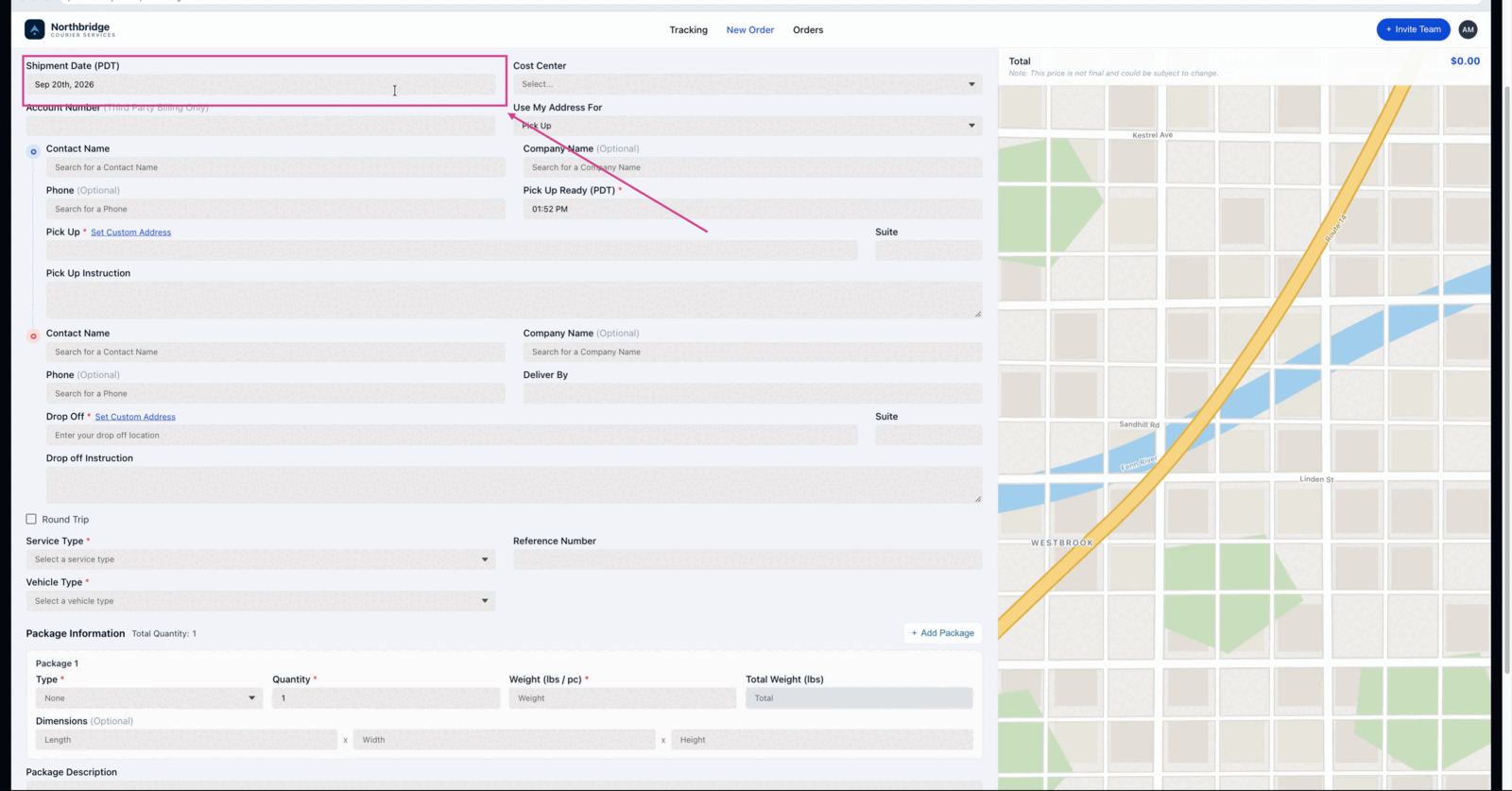
Enter the date
Enter the date for your order. The system uses today’s date by default. For future deliveries, update the date as needed.
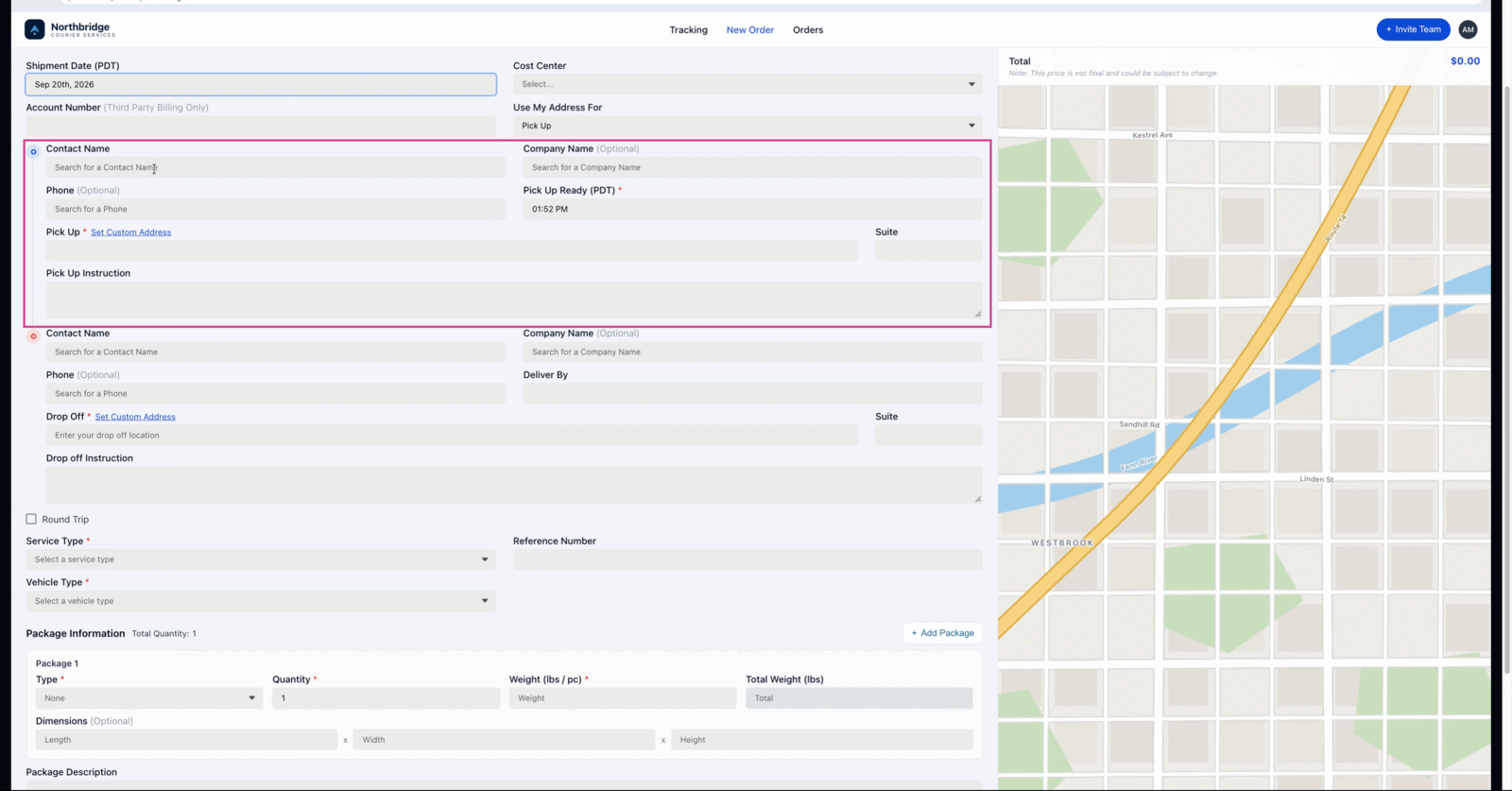
Add your pickup details
Go to the Pickup section. Enter your pickup details at the top of the form: contact name, company name, phone number, ready time, and address.
Check the address
When entering the address, the field pulls from your saved address book and Google Maps. Double-check suite numbers and add pickup instructions if needed.
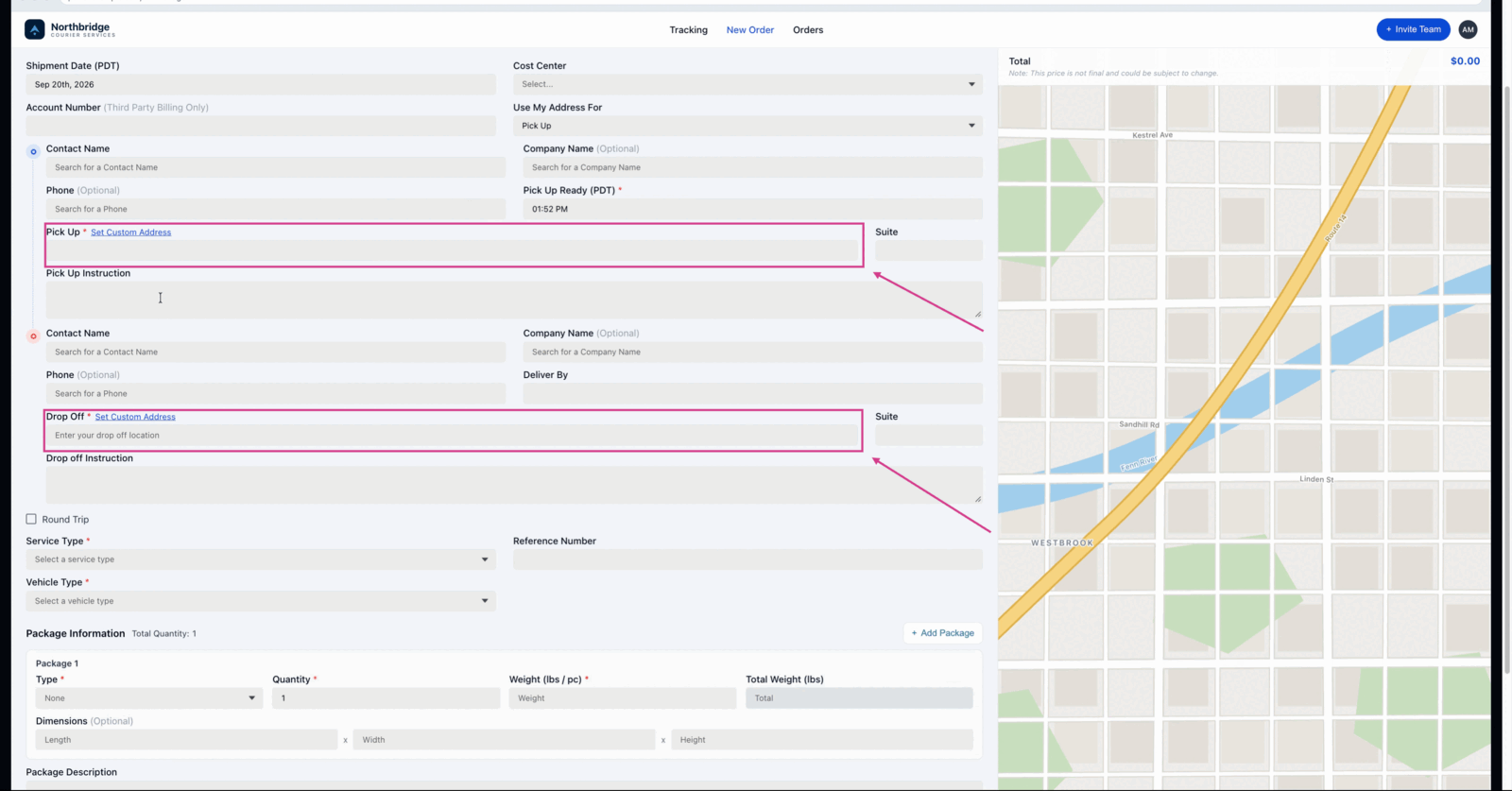
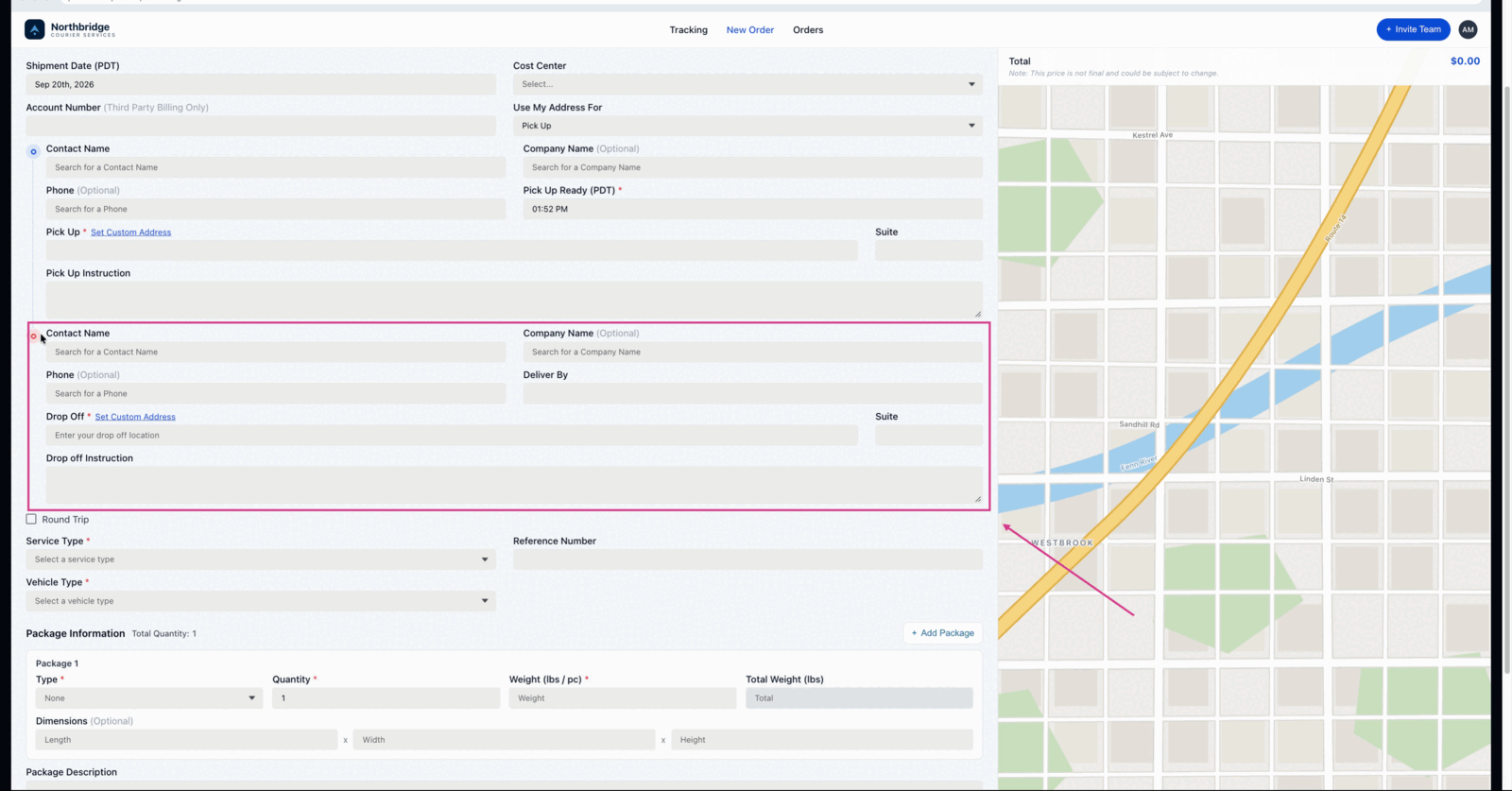
Fill in the drop off
Scroll to the Drop Off section. Fill in the recipient’s contact name, company name, phone number, delivery deadline, address, and any drop-off instructions.
Choose a service type
Choose your Service Type and enter any reference number if required.
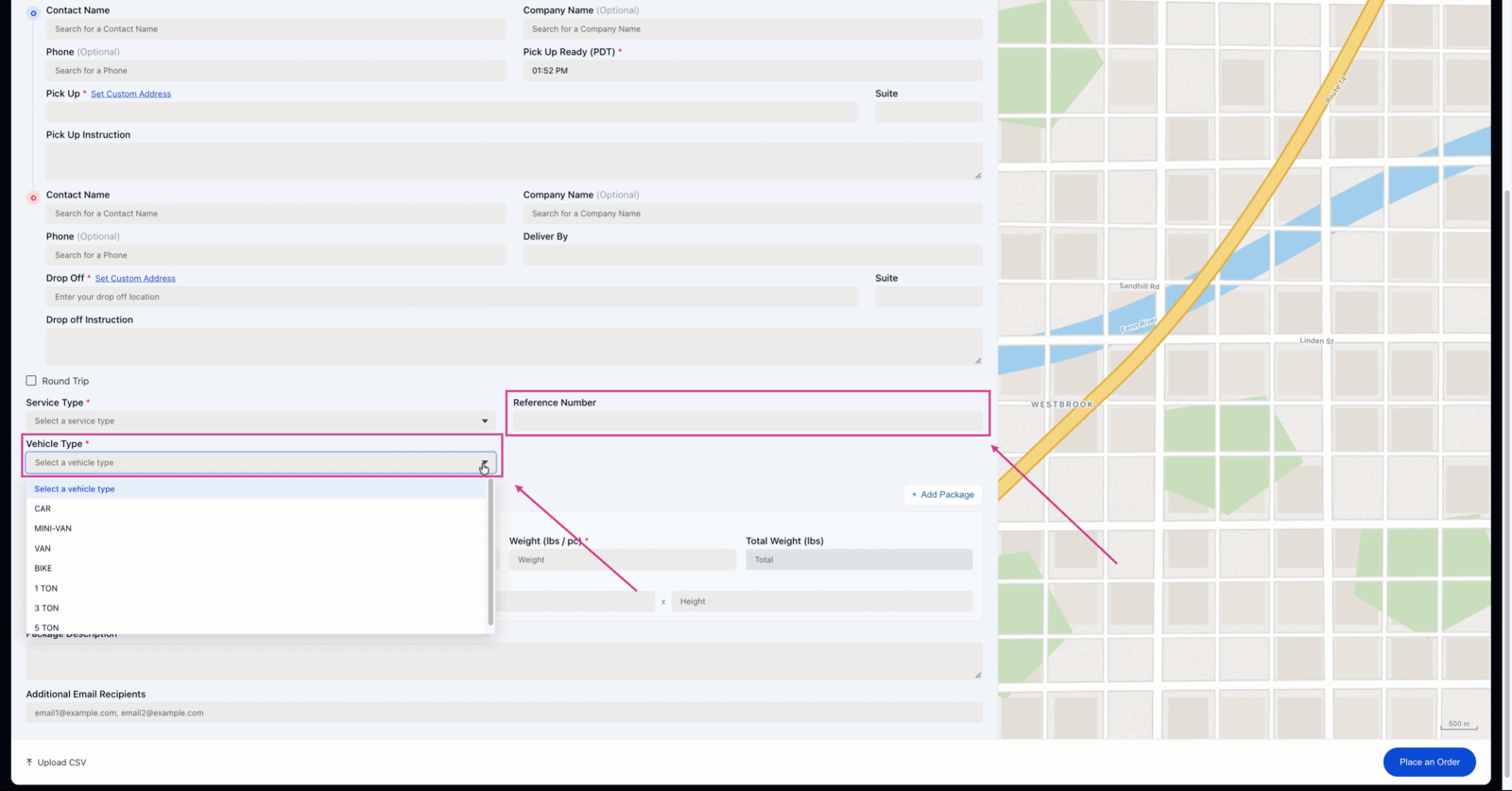
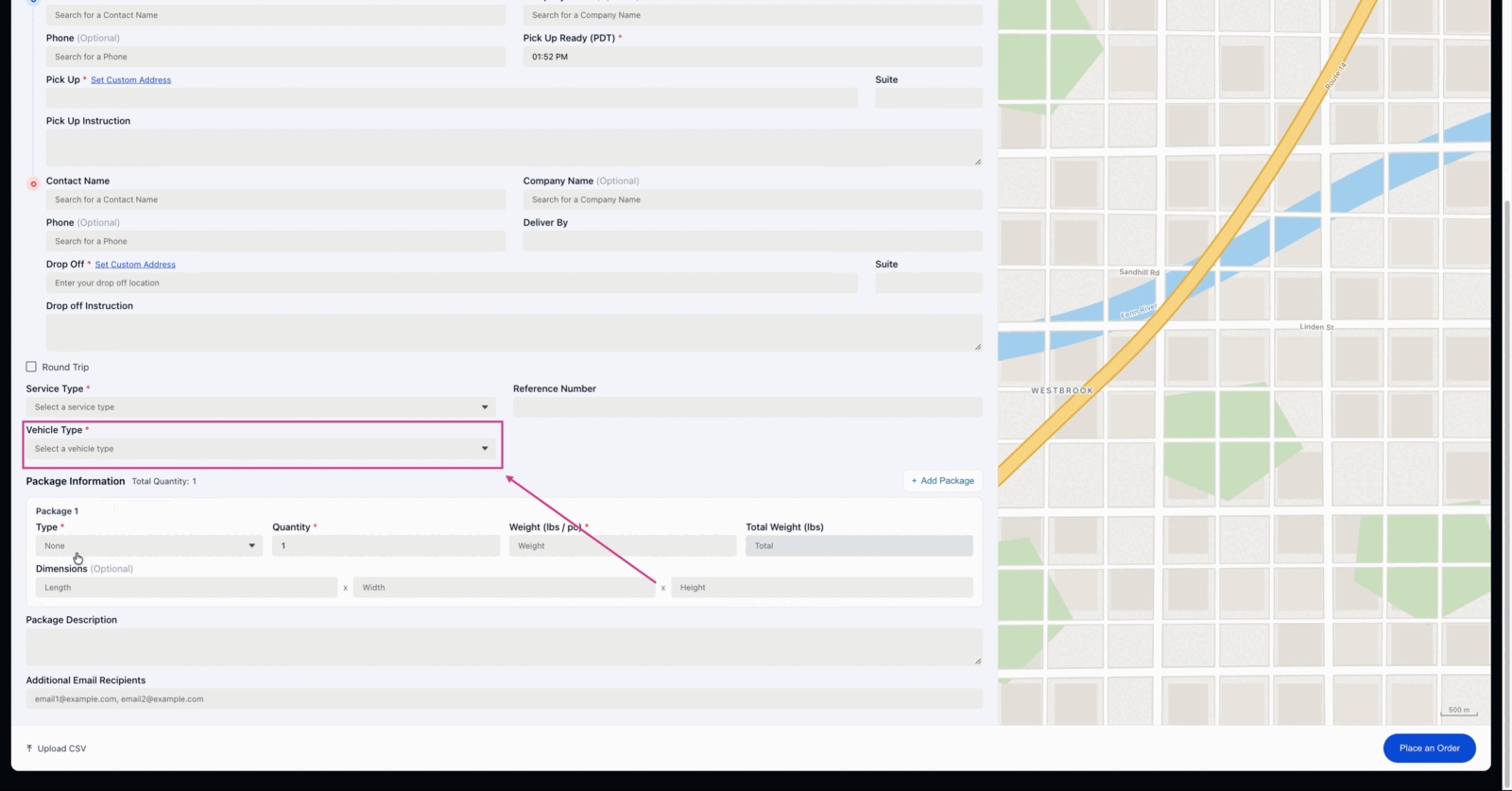
Pick a vehicle type
Pick a Vehicle Type. The default will match your service selection.
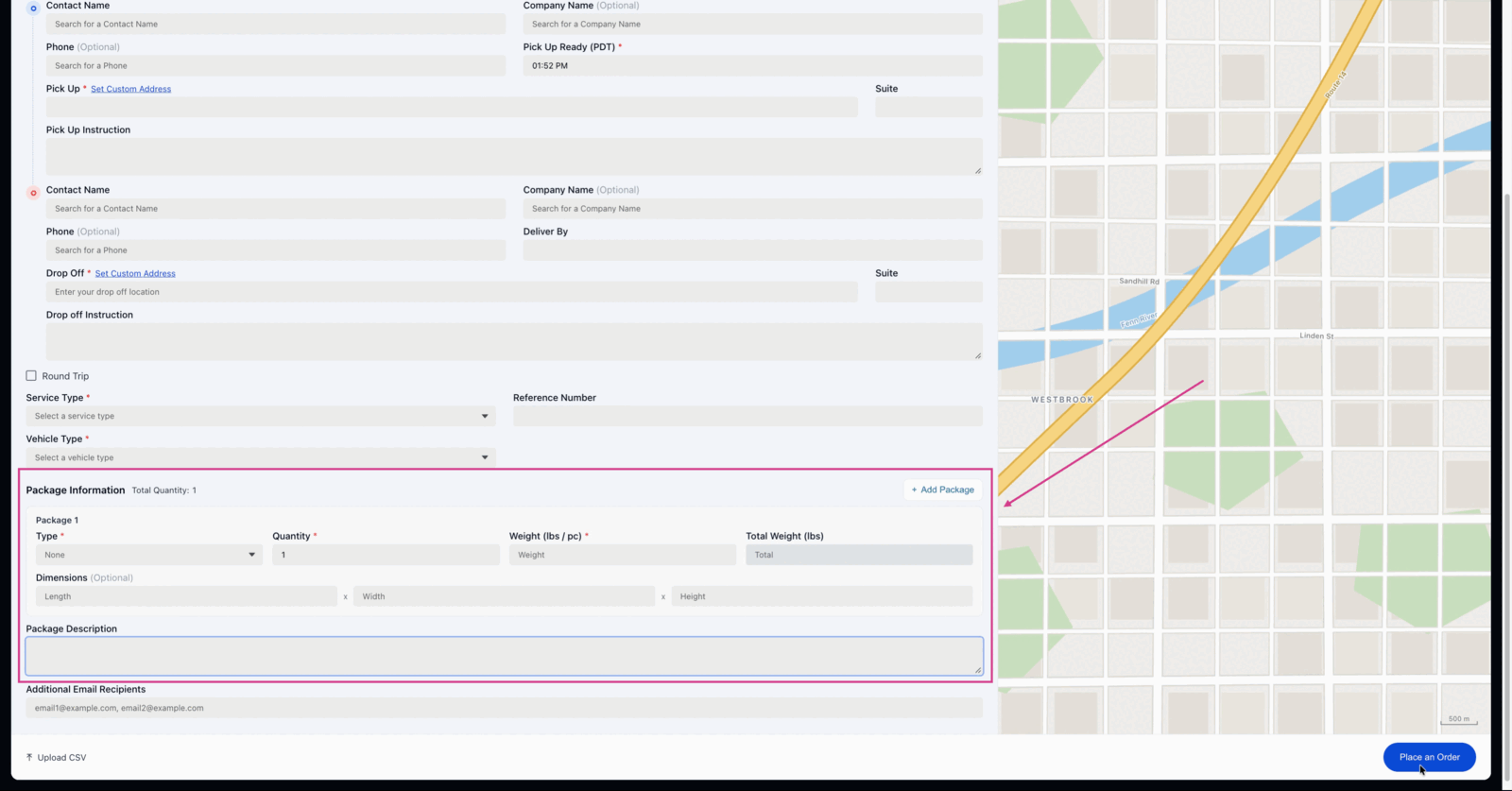
Add package information
Add your package information. You can include a package description for more clarity.
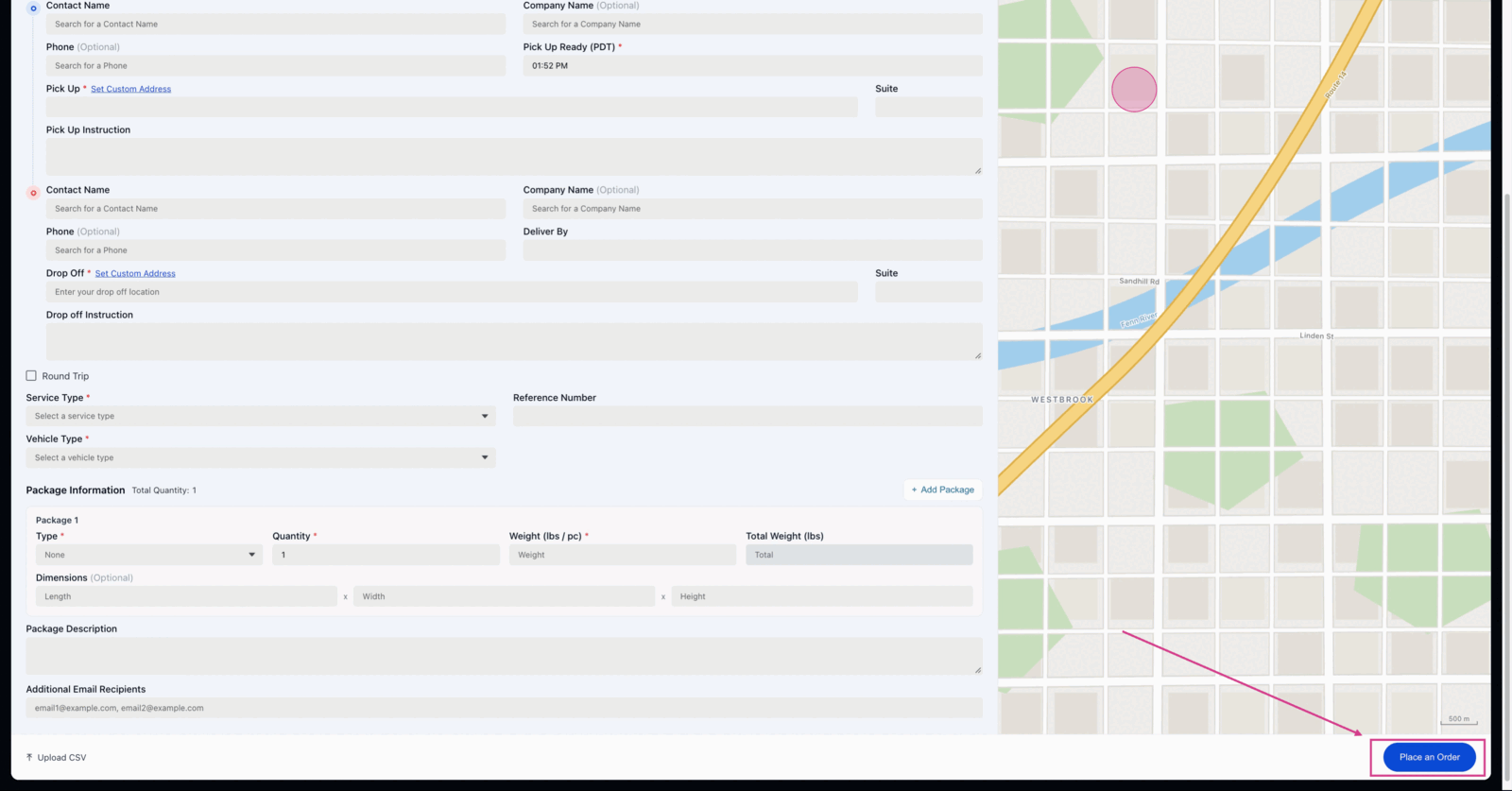
Place the order
Click Place Order to finish.
Order placed! 📦
That’s all it takes. Your delivery is set and ready to go. Double-check your details before placing the order for a smooth experience.